Precise, source-based style matching.
Automatically match available fonts, size, weight, color and spacing to your original screenshot.
Make small text corrections in clean PNG or JPG images and screenshots. Recognize and edit text on your device, review the result, then download your PNG.
Automatic style matching · Files up to 10 MB · Images up to 20 million pixels · Original-size PNG export
Image editing beta · PDF editing is not yet enabled. / 图片编辑测试版 · PDF 尚未开放。
WHY TEXTRETOUCH
Automatically match available fonts, size, weight, color and spacing to your original screenshot.
Keep the matched font size and natural character widths. Longer replacements show an overflow warning instead of being automatically shrunk or stretched.
Edit words and numbers in clear spreadsheet screenshots while detected straight grid lines and cell boundaries stay protected.
Click a text region and make your change directly on the image, or use the linked text box for small lettering. Review the result before saving.
File size: up to 10 MB. Image resolution: up to 20 million pixels (20MP). Zoom in to work comfortably on small text.
Download your edited screenshot as a PNG at its original pixel width and height.
Best for clear, horizontal text on plain backgrounds. Font matches may be approximate; review the preview before saving.
Start editingIMAGE TEXT EDITOR ONLINE
Correct a word, date or number in a clear PNG or JPG without rebuilding the whole image. Select the existing text, edit it in place, and review automatic font matching before saving a PNG at the original image dimensions.
Edit small labels, words and numbers in clean phone, desktop or chat screenshots. Text needs a plain background; complex photos and overlapping graphics are outside this version’s scope.
Replace text in a table screenshot while protecting detected straight grid lines. Edits stay within the cell; the result is an image, and the spreadsheet’s formulas are unchanged.
Open PNG, JPG or JPEG files and edit existing text in the live preview. Use the linked text box for small lettering, and zoom in to check the result before PNG export.
Recognize Chinese, English and mixed-language text. Check OCR against the original, especially digits and punctuation. Font matches are approximate and remain adjustable.
PDF EDITOR / NOT YET ENABLED
This online beta supports PNG and JPG images. The following fictional documents show the existing local PDF workflow; online PDF editing will follow a separate backend deployment.
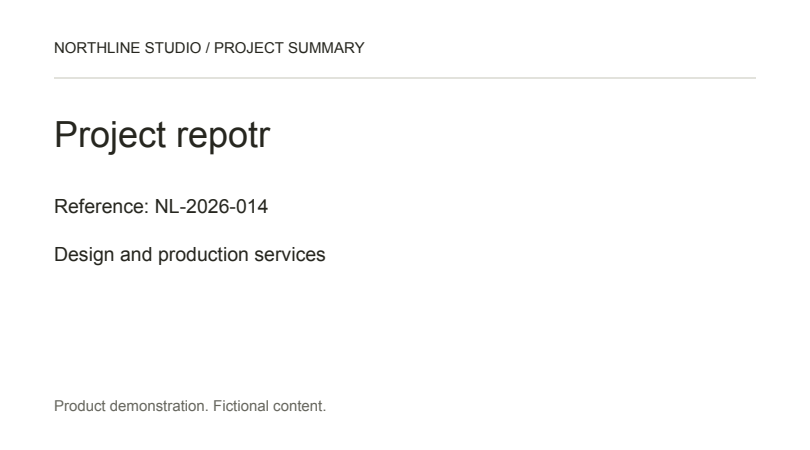
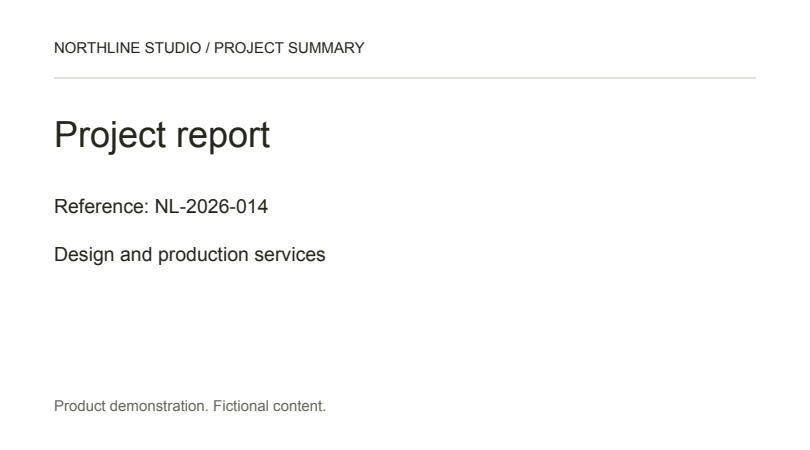
Correct a heading while retaining the document font and surrounding layout.
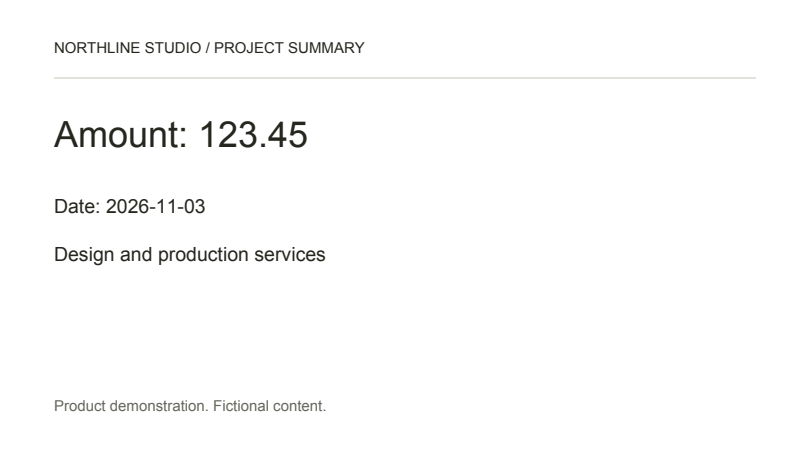
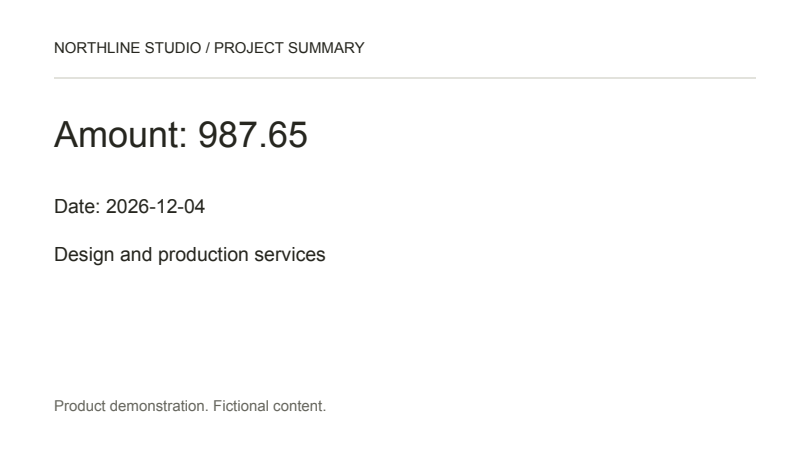
Update a decimal value and a date in place, then check every digit.
Add a missing note without rebuilding the entire page.
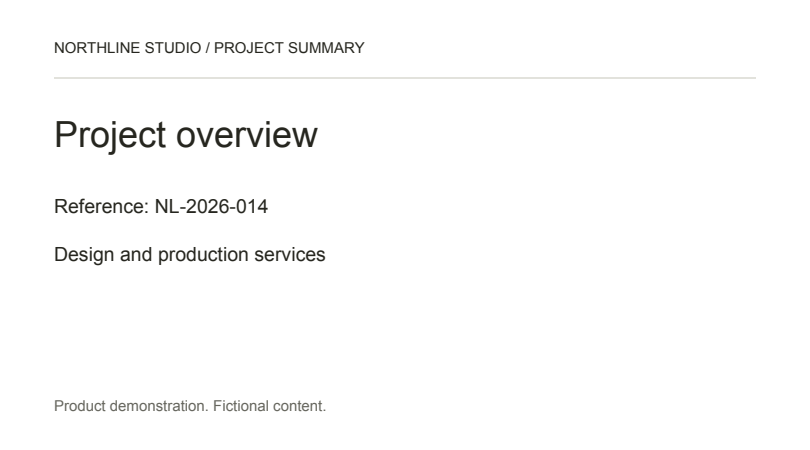
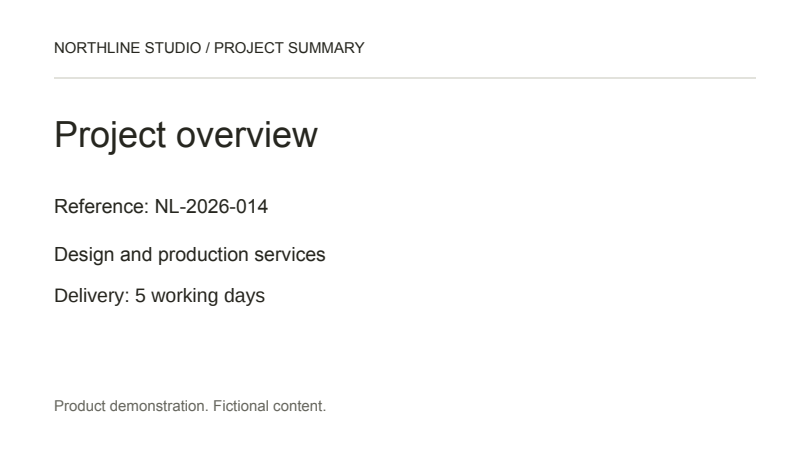
Fictional demonstration documents. Highlight outlines identify the changed region; they are not part of the downloaded file.
THREE STEPS
Open or drop a clear PNG or JPG. Recognition runs in your browser; first use downloads public recognition models. Files can be up to 10 MB.
Click a detected text region and edit directly on the page or in the linked text box. Style matching runs automatically; font, size, spacing and color controls remain optional.
Check numbers, punctuation and font appearance in the preview. Download a PNG at the original image dimensions, generated on your device.
FAMILIAR OFFICE AND SCREEN FONTS
To match a font in an image, the editor compares available system fonts and open fonts, including Roboto, Inter and Chinese alternatives. Screenshot matches are estimates; check letter shapes, size and spacing before exporting.
Invoice 0123456789
Invoice 0123456789
Invoice 0123456789
Invoice 0123456789
Invoice 0123456789
Invoice 0123456789
Invoice 0123456789
中文修改 金额 0123456789
中文修改 金额 0123456789
Compatible alternatives can differ in letter shapes. Availability of a font does not guarantee an exact match to every source document.
YOUR DOCUMENT, YOUR CONTROL
Image recognition, font matching and PNG export run in your browser. Original images and recognized text are not uploaded. Only public recognition models may be cached.
Your current image and draft stay in browser memory. Clear the image or close/reload the page to discard the editing session. No server task or one-hour timer is used for images.
No account is required, and no persistent image draft or file history is kept. Your downloaded PNG remains on your device. PDF and AI processing are not enabled in this beta.
QUESTIONS AND LIMITS
Open a PNG or JPG and select a detected text region. Chinese and English recognition runs automatically in your browser. Type directly on the image or in the Selected text box; both update the same preview. Review the result, then save the edited image as a PNG. Use clear text on a plain background.
Click the detected text region and replace only the characters you need to change. You can also drag to select a smaller area or a missed word. The screenshot text editor keeps the matched font size, weight and natural character widths rather than automatically stretching or shrinking the letters. Longer text shows an overflow warning when it needs more space and cannot cross protected content or a detected table-cell boundary.
This online beta accepts clear PNG and JPG images up to 10 MB and 20 million pixels (20MP). PDF editing is not yet enabled.
Yes. Browser recognition uses a Chinese/English model for Chinese, English-only and mixed-language screenshots. Recognition and font matching are automatic, with optional adjustments. Chinese font alternatives include 中文黑体 and 中文宋体 in regular and bold. Compare the recognized words, punctuation and numbers against the source image before saving; OCR can make mistakes.
Yes, for clear screenshots with straight table borders. Detected grid lines are protected while you edit words or numbers within one cell. A replacement cannot cross a detected cell boundary. The result is an image exported as PNG; your original spreadsheet and formulas are unchanged. Broken, slanted or text-overlapping borders require review.
Letters keep their natural widths and kerning. The same letter count does not mean the same width: iii is much narrower than WWW. Replacements keep the selected size and weight; use shorter text or manually expand the selection into empty space if a replacement overflows.
Matching compares the source pixels with available system fonts and bundled alternatives. It is approximate; review the font, digits and punctuation before saving.
Yes. Drag an empty area or choose Add text. Nearby source text supplies an estimated style. Existing words, graphics and detected table borders remain protected.
PDF editing is not yet enabled in this online beta. The local PDF editor is retained for a later backend deployment.
A longer word, different digits or a wider font may exceed the available space. The editor does not automatically shrink or stretch the text. Use shorter wording or expand the area into empty space; optional size and spacing controls are in Advanced adjustments. Protected neighboring content and table-cell boundaries still limit the edit.
An edited PNG at the original image width and height, generated in your browser. Your original image, recognized text and finished PNG are not uploaded.
The current image and draft stay in browser memory. Clear the image or close/reload the page to discard the session. Only public recognition models may be cached. No persistent image draft or server file history is created.
Yes. PNG or JPG files can be up to 10 MB in file size and 20 million pixels (20MP) in resolution. For example, 5,000 × 4,000 pixels is 20MP. These are two different limits. Zoom in to work on small text, then download the edited PNG at its original pixel width and height. Review the preview before saving.
Open an image or screenshot, change the text, and review your PNG export.